The Trace Window
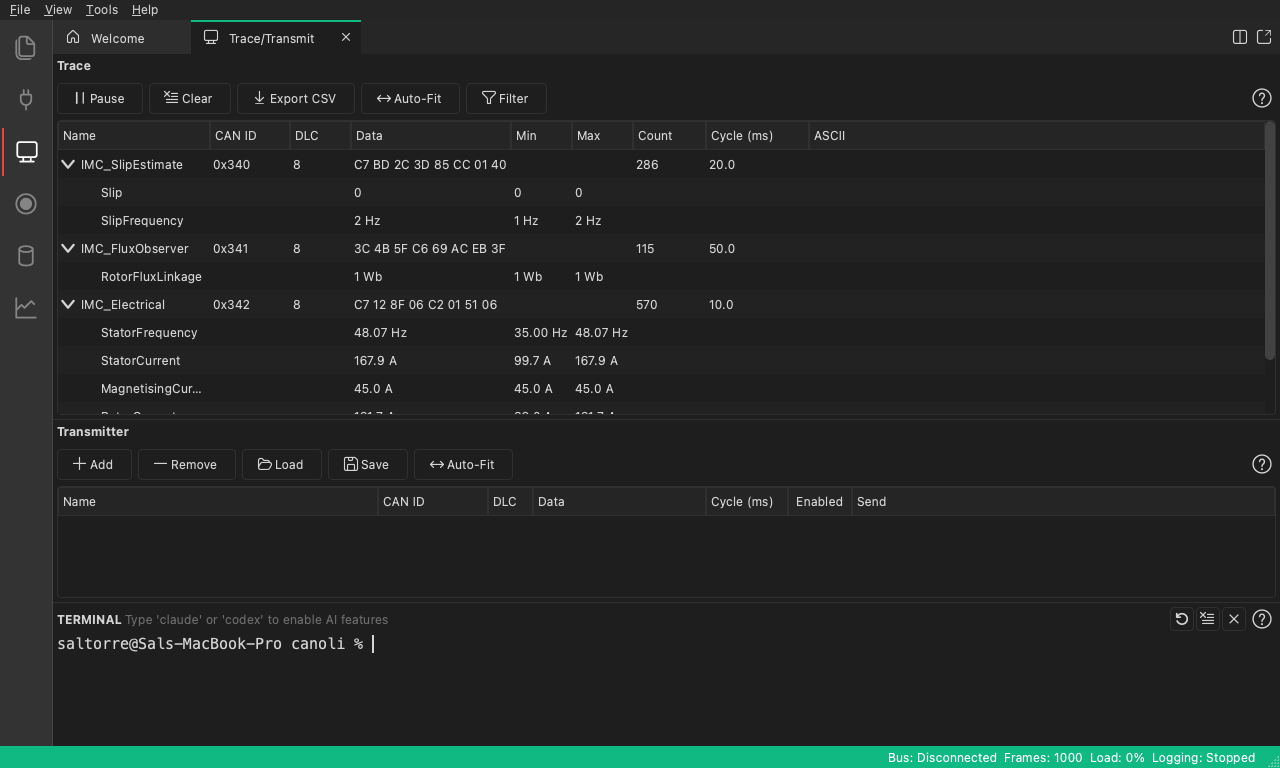
The Trace window is your live view of the bus. Once you’re connected, every received frame shows up here in real time. Open it from the Trace item in the sidebar.
Reading the columns
The trace is a table with one row per message:
| Column | Meaning |
|---|---|
| Name | The message name from the loaded database, or blank if unknown |
| CAN ID | The arbitration ID in hex, for example 0x2AD |
| DLC | Data length code (number of data bytes) |
| Data | The raw payload as space-separated hex bytes, for example 00 11 22 33 |
| Min / Max | The lowest and highest value seen for each decoded signal (shown on the expanded signal rows) |
| Count | How many times this ID has been seen |
| Cycle (ms) | The measured period between frames of this ID |
| ASCII | The payload rendered as text — shown only when the bytes look like ASCII, otherwise blank |
Choosing which columns to show
Right-click the trace header to open a menu of checkable column names — tick or untick any of them (Name, CAN ID, DLC, Data, Min, Max, Count, Cycle, ASCII) to show or hide that column. Your choice is saved with the project’s layout, so it persists across sessions.
Grouping by ID
Rather than scrolling an endless log, the trace groups by CAN ID: each unique arbitration ID gets a single row that updates in place. The Count column tells you how many frames have arrived, and the Cycle (ms) column shows how often.
Cycle time
The Cycle (ms) column is a smoothed average of the time between consecutive
frames for that ID, shown to one decimal place (for example, 100.0). It stays
blank until a second frame arrives, then settles as more frames come in. This makes
it easy to spot a periodic message that has slowed down or stopped.
Expanding into signals
If you’ve loaded a database, a disclosure triangle appears
next to messages that the database describes. Expand a row to see its decoded
signals as child rows — each with its name and engineering value (for example,
42.5 mph, or Off (0) for an enumerated value). See
Viewing Decoded Signals for the full story.
Sending a signal to a chart
Right-click a signal child row and choose Add to Chart to start plotting it.
The signal opens in the Chart panel keyed as
MessageName.SignalName.
Toolbar actions
The trace toolbar has five buttons:
- Pause — freezes the view. Frames keep arriving and are buffered while you read, then catch up when you press Resume; the trace does not skip what happened during the pause.
- Clear — empties the trace so you can start a fresh capture.
- Export CSV — writes the current trace contents to a CSV file.
- Auto-Fit — sizes every column to its contents, including the signal names inside collapsed message rows.
- Filter — shows the filter bar, which limits the view to the CAN IDs and data patterns you enter.
If a long pause runs out of room
The pause buffer is large but not unlimited. If you leave the trace paused on a
busy bus for long enough to fill it, the oldest buffered frames are discarded to
make room for new ones, and a notice appears beside Resume counting how many
were lost — for example, ⚠ 12,345 frames dropped. Resuming stops the
discarding, and Clear resets the count.
If you need a gap-free record of a long capture, record it with the Logger rather than relying on the pause buffer: logging writes every frame to disk as it arrives and is unaffected by pausing the view.
Anomaly markers
While you’re connected, CANoli continuously checks live traffic for misbehavior — unexpected timing, missing periodic messages, out-of-range signal values, and signal drift — and flags any offending message right here, in real time. A marker appears in front of the message’s Name, with a tooltip noting that an anomaly was detected; the marker reflects the worst severity seen for that ID. This draws your eye to misbehaving IDs without leaving the trace or asking your agent.
Your AI agent uses the same detectors to scan recorded logs on demand and explain what it finds.
Next: Viewing Decoded Signals.