Logging & Replay
CANoli can record everything on the bus to a file and later replay it as if it were live traffic. Both live in the Logger panel (the record icon in the sidebar).
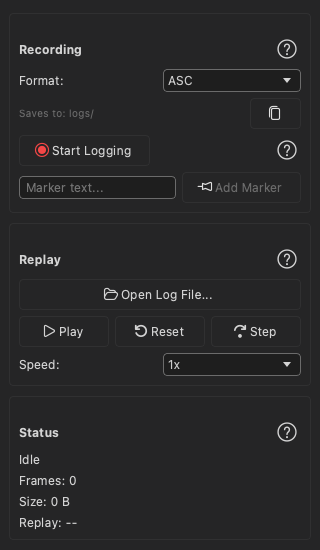
Recording a log
- Connect to the bus.
- Open the Logger panel.
- Choose a Format from the dropdown:
- ASC — Vector ASCII format, widely interoperable.
- BLF — Vector binary format, compact for large captures.
- CSV — plain spreadsheet format.
- Click Start Logging. The button changes to Stop Logging and the status
reads
Logging.... - Click Stop Logging when you’re done.
While recording, the panel’s Frames: count and file Size: tick live, and the status bar’s logging label counts up with them — so you can see capture progressing even with the Logger panel closed.
Logs are written to a logs/ folder next to your project file, with timestamped
names like canoli_20260617_143022.asc. The Saves to: line shows the folder
— hover it for the full path, or click the copy button beside it to put the path
on the clipboard.
Markers
Type a note in the Marker text… field and click Add Marker to drop a timestamped annotation into the log while recording — handy for marking the moment a fault occurred.
Loading a log for replay
In the Replay section of the Logger panel:
- Click Open Log File… and pick a log. Replay can read ASC (
.asc), BLF (.blf), CSV (.csv), and TRC (.trc, PEAK) files. - The progress readout shows
Replay: 0 / <total>once the file is loaded.
Playing back
The replay controls are:
- Play — start replaying; the button becomes Pause while running.
- Reset — rewind to the first frame.
- Step — advance a single frame at a time (great for inspecting a sequence).
- Speed: — playback rate:
1x(original timing),2x,5x,10x, orMax(as fast as possible).
As replay runs, the progress readout updates (for example, Replay: 42 / 1000) and
the replayed frames flow into the Trace window and
Chart exactly like live traffic — so every analysis tool works
on recorded data too.
Tip: Replay is also the easiest way to feed a log into the AI features. Most AI tools read a log file directly, so you can analyze a capture without going on bus at all.
Next: Charting Received Data.