Getting Started
Welcome to CANoli — an AI-native CAN bus analysis and visualization tool, the bridge between your CAN bus and your AI agent. CANoli has no embedded AI of its own: you bring your own LLM agent, which connects over MCP and drives the app. Think of it as a modern alternative to traditional CAN analysis tools: you watch live traffic, decode it against a database, transmit your own messages, log and replay sessions, chart signals over time, and — when you want a hand — point an external AI agent at the bus to decode unknown IDs, flag anomalies, and answer questions about a log in plain English.
What CANoli is
CANoli combines the everyday tools of a CAN bench into one app:
- A live Trace window for incoming traffic.
- A Transmit panel for sending one-shot or periodic frames.
- A Database editor for DBC/SYM files so raw bytes turn into named signals.
- A Logger for recording and replaying sessions.
- A Chart for plotting signals over time.
- An AI layer (bring-your-own-LLM over MCP) that reads the real bus and the real docs to help you analyze data.
Install and launch
CANoli is a native desktop app for macOS, Windows, and Linux. Download the installer for your operating system from the CANoli downloads page, install it like any other application, and launch CANoli.
On Linux there are two downloads rather than one: a .deb for Debian,
Ubuntu and Mint, and a .tar.gz for everything else. Which to take, and the
glibc version CANoli needs, are covered in
System Requirements.
The window title reads CANoli followed by the version (for example,
CANoli v1.0.0).
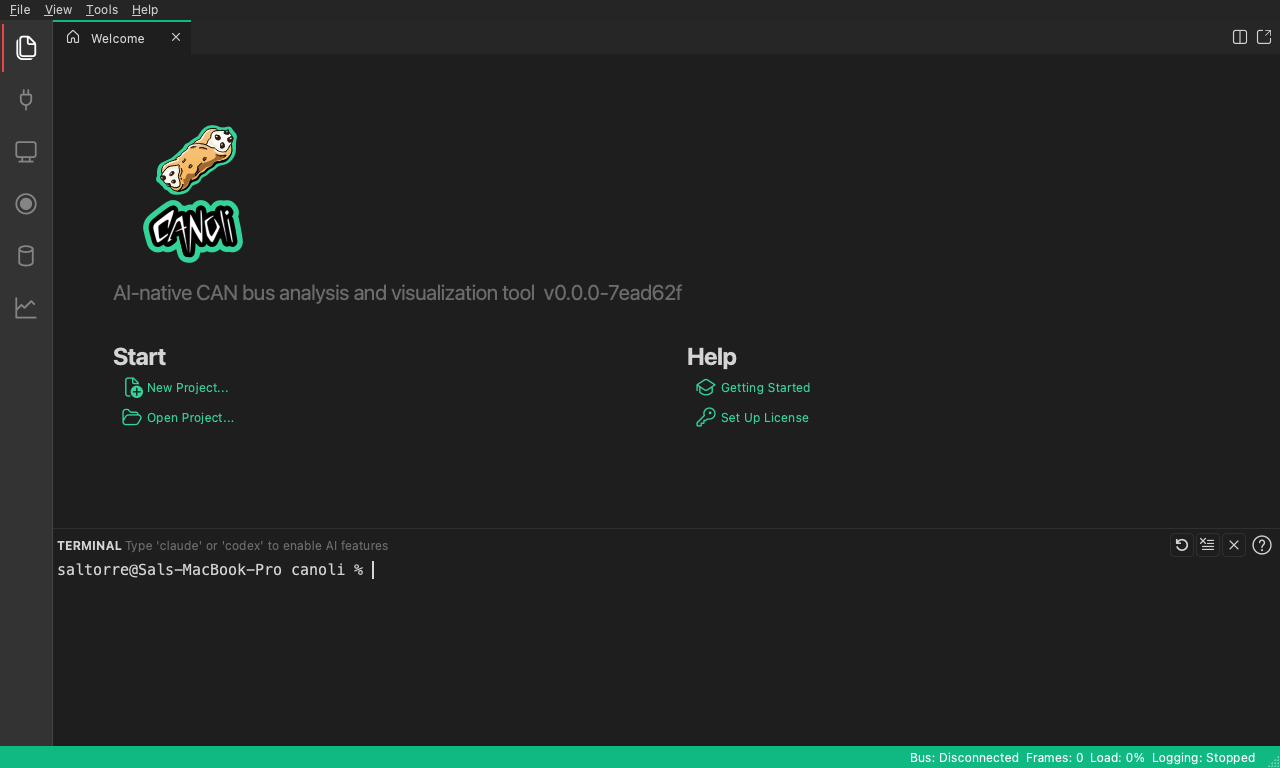
The main window at a glance
CANoli uses a VS Code-style layout. A narrow sidebar runs down the left edge; each icon opens a panel. From top to bottom:
| Sidebar item | What it opens |
|---|---|
| Explorer | Project file browser |
| Connection | Adapter setup — see Connect a CAN Adapter |
| Trace | Live traffic — see The Trace Window |
| Logger | Recording & replay — see Logging & Replay |
| Database | DBC/SYM editor — see Working with Databases |
| Chart | Signal plots — see Charting Received Data |
A status bar along the bottom shows the bus state (for example,
Bus: Disconnected), the live frame count, the bus load, and the logging state.
Projects
CANoli organizes your work into project files with a .canoli extension. From
the File menu (or the Welcome tab) you can:
- New Project… (
Ctrl+N) - Open Project… (
Ctrl+Shift+O) - Save Project (
Ctrl+S) - Save Project As… (
Ctrl+Shift+A)
A project remembers your adapter settings, loaded database, and panel layout.
Recorded logs are saved into a logs/ folder next to the project file.
The workflow at a glance
The rest of this guide follows the natural order you’d use at the bench:
- Connect a CAN adapter — choose hardware, set the bitrate, go on bus.
- The Trace window — watch live messages, grouped by ID.
- Viewing decoded signals — load a database so messages expand into named signals.
- Transmitting messages — send one-shot or periodic frames.
- Logging & replay — record a session, then play it back.
- Charting received data — plot signals over time and export the result.
- Working with databases (DBC) — build and edit the description that powers decoding.
- AI features — connect an external agent over MCP for auto-decode, anomaly detection, and natural-language log queries.
If you just want to explore without hardware, pick the Virtual adapter on the Connection panel — it simulates two CAN nodes so every feature works on a laptop.
Licensing and trial
CANoli requires a license to use. A trial unlocks the full app for an evaluation period, and a perpetual license removes the time limit. The Database (DBC/SYM) editor is always free, even without a license.
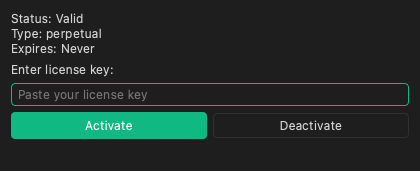
To enter or manage a license, open Help > License…, paste your key, and click Activate. Use Deactivate to free the seat before moving to another machine.
Next: Connect a CAN Adapter.