Connect a CAN Adapter
Before you can see traffic, CANoli needs to be on the bus. Open the Connection panel from the sidebar to choose an adapter, set the bitrate and bus mode, and go on bus.
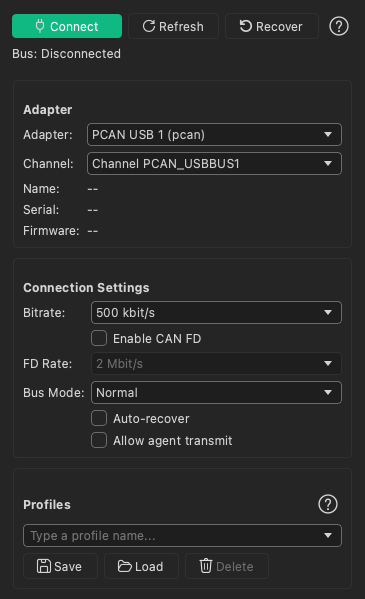
Choosing an adapter
The Adapter group lists every adapter CANoli detects. Each entry shows the
device name and interface type, for example PCAN USB 1 (pcan) or
Virtual CAN 0 (virtual).
Currently supported adapters:
- PCAN — Peak Systems PCAN-USB, PCAN-USB FD, and PCAN-USB Pro FD hardware (requires the PCAN driver for your operating system — see below). Works on Windows, macOS, and Linux.
- SocketCAN — Linux CAN interfaces (
can0,can1, …) and virtual buses (vcan0). Linux only; see Using SocketCAN on Linux below for setup. - Vector — Vector VN16xx interfaces (e.g. VN1610, VN1611). Windows only — requires the Vector XL Driver Library, which is not available on macOS or Linux.
- Virtual — a built-in simulated adapter that pairs two CAN nodes in software. No hardware required; ideal for trying CANoli or testing a setup.
Note: A CANoli-branded adapter is planned but not yet selectable. If you don’t see your hardware, click Refresh to re-enumerate. On Linux, Vector hardware will not appear — its driver library is Windows-only.
After picking an adapter, the Channel field shows its channel (for example,
Channel PCAN_USBBUS1). The Name, Serial, and Firmware fields fill in
with device details where the hardware reports them.
Use the Refresh button in the toolbar at any time to re-scan for newly plugged-in adapters.
Installing the PCAN driver
PCAN hardware needs Peak System’s driver for your operating system:
- Windows — install the PCAN device-driver package from peak-system.com.
- macOS — nothing to install. CANoli bundles the PCBUSB library, the macOS PCAN driver, because PEAK publishes none of its own for the platform. It is redistributed under its own licence, which ships inside the application.
- Linux — PCAN works through the in-kernel SocketCAN
peak_usbdriver, which ships with most modern kernels; no separate install is usually needed.
The built-in Virtual adapter needs no driver.
Using SocketCAN on Linux
On Linux, CAN adapters are network interfaces managed by the kernel, so the setup
differs from the USB adapters. This applies to any SocketCAN-capable hardware,
including PEAK PCAN (which Linux drives through its in-kernel peak_usb
driver as a SocketCAN interface).
Unlike the USB adapters, CANoli does not set the bitrate for a SocketCAN link — the bitrate and mode are configured on the OS network interface. Bring the interface up before connecting in CANoli:
sudo ip link set can0 up type can bitrate 500000Then in CANoli, open the Connection panel, pick the SocketCAN entry for your
interface (for example can0), and click Connect. The Bitrate you choose
in CANoli’s UI is recorded for display only in this mode — the value set with
ip link is what governs the bus.
To take the interface back down:
sudo ip link set can0 downCANoli also enumerates virtual SocketCAN interfaces (vcan0), which let you
exercise the SocketCAN path with no hardware attached:
sudo modprobe vcan
sudo ip link add dev vcan0 type vcan
sudo ip link set vcan0 up
Setting the bitrate
In the Connection Settings group, pick the Bitrate for your bus. Standard rates from 10 kbit/s up to 1 Mbit/s are available; the default is 500 kbit/s, the most common automotive rate.
CAN FD
For CAN FD buses, tick Enable CAN FD. This unlocks the FD Rate dropdown for the faster data-phase bitrate (500 kbit/s up to 8 Mbit/s; default 2 Mbit/s). Leave CAN FD unchecked for classic CAN.
Bus mode
The Bus Mode dropdown controls how CANoli participates on the bus:
- Normal — full participation; CANoli can receive and transmit, and it acknowledges frames.
- Listen Only — passive monitoring. CANoli receives traffic but never writes to the bus (no ACKs, no transmits). Use this to tap a live bus without disturbing it.
- Loopback — frames you send are looped back internally, useful for testing.
Connecting and disconnecting
Click Connect (the green button in the toolbar). When CANoli goes on bus, the
button turns red and reads Disconnect, and the status indicator changes to
Bus: Bus On. Click it again to leave the bus.
Saving connection profiles
The Profiles group lets you save a complete connection setup — adapter, bitrate, bus mode, and CAN FD settings — and switch between them quickly:
- To save: configure your settings, type a name in the dropdown, and click Save.
- To load: select a saved profile and click Load.
- To delete: select the profile and click Delete.
You don’t need a profile to keep your settings, though: your current
connection setup (adapter, bitrate, bus mode, and CAN FD settings) is also saved
in your .canoli project file, so reopening a project restores it
automatically. Profiles are simply a convenient way to keep several named setups
and switch between them, independent of any one project.
Next: The Trace Window.