Charting Received Data
The Chart panel plots decoded signals over time so you can see how a value behaves — a throttle ramp, a temperature climb, a counter rolling over. Open it from the Chart item in the sidebar.
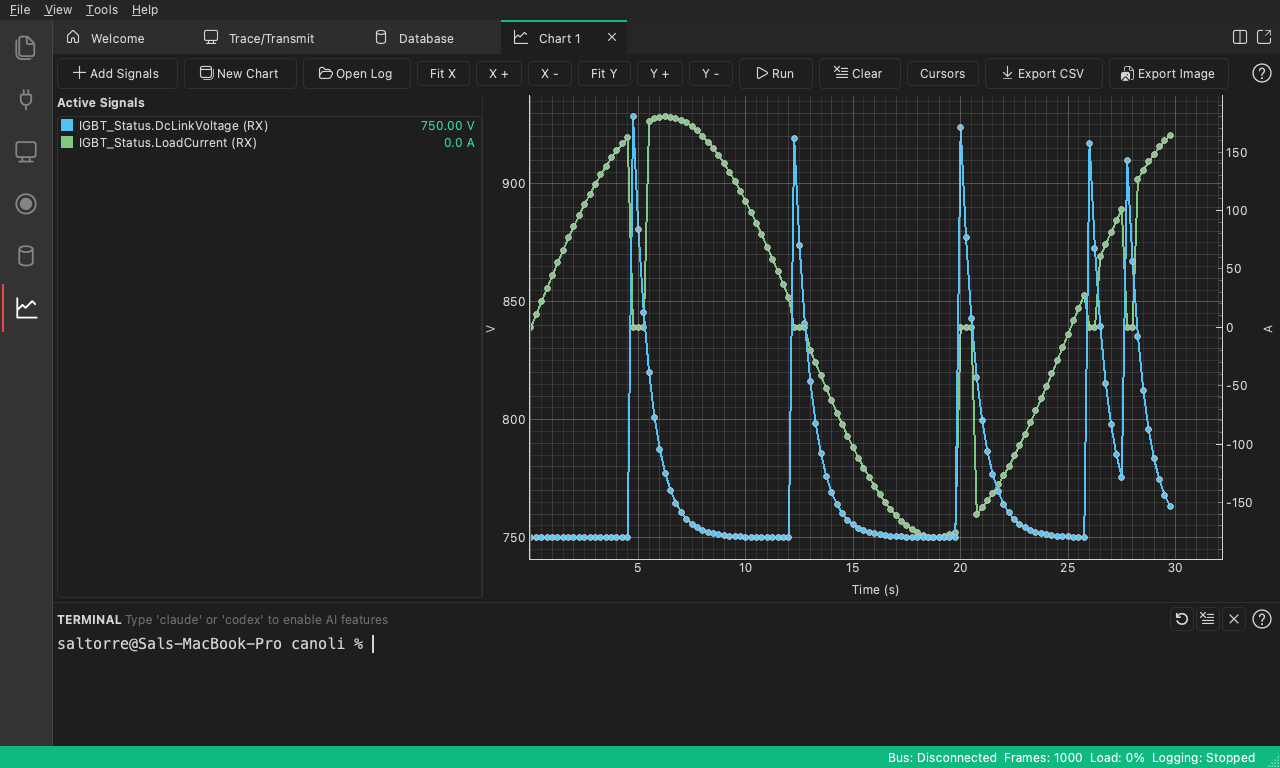
Choosing signals to plot
You need a loaded database so signals are available to plot. Then either:
- Click Add Signals in the chart toolbar to open the signal picker. Use the Filter signals… box to search, tick the signals you want, and confirm. Or
- Right-click a signal in the Trace window and choose Add to Chart.
Plotted signals appear in the Active Signals legend, keyed as
MessageName.SignalName with an (RX) or (TX) suffix to show direction.
Multiple charts
Click New Chart in the chart toolbar (next to Add Signals) to open another chart in its own tab. Each chart keeps its own signal selection and view, so you can watch different groups of signals side by side — for example motor RPM on one chart and battery voltages on another. Live and replayed data feed every open chart at once, and a chart opened while a capture or replay is already running starts following the data straight away. Your open charts and their selections are saved with the project, so they come back when you reopen it.
Running the chart
- Run — start updating the plot with live (or replayed) data; the button becomes Pause while running.
- Clear — remove all curves and data.
- Cursors — toggle measurement cursors for reading values off the plot.
The horizontal axis is Time in seconds, measured from when the chart started running.
Reading values
Turn on Cursors to place measurement cursors:
- Cursor A reads the value of each signal at a point in time.
- Cursor B lets you measure the delta (Δ) between two points — both the time difference and each signal’s change.
Adjusting the view
The toolbar also has view controls:
- Fit X / Fit Y — scale an axis to fit the data.
- Zoom + / Zoom - — zoom in and out.
Right-click the plot for the same actions plus Show Grid. Right-click a legend entry to Set Color, pick a Set Marker style (None, Circle, Square, Triangle), or Remove signal.
Exporting the chart
Two export buttons let you save your work:
- Export CSV — write the plotted data to a
.csvfile (aTimestamp (s)column followed by one column per signal). Good for further analysis in a spreadsheet. - Export Image — save a picture of the chart as PNG (
.png) or SVG (.svg), for reports and bug tickets.
Tip: an AI agent can drive the chart for you over MCP — setting up signals, reading the chart state, and exporting — via the
setup_chart,get_chart_state, andexport_charttools. It can also frame the chart to a moment it found withset_chart_windowand mark an event withannotate_chart, so “why did the controller fault?” produces a tight, annotated chart.
Next: Working with Databases (DBC).