Working with Databases (DBC)
A database is the description that turns raw CAN bytes into named signals. The
Database panel lets you open, build, and edit one — or several at once. CANoli
reads DBC (.dbc) and SYM (.sym) files and saves to DBC.
Opening and saving
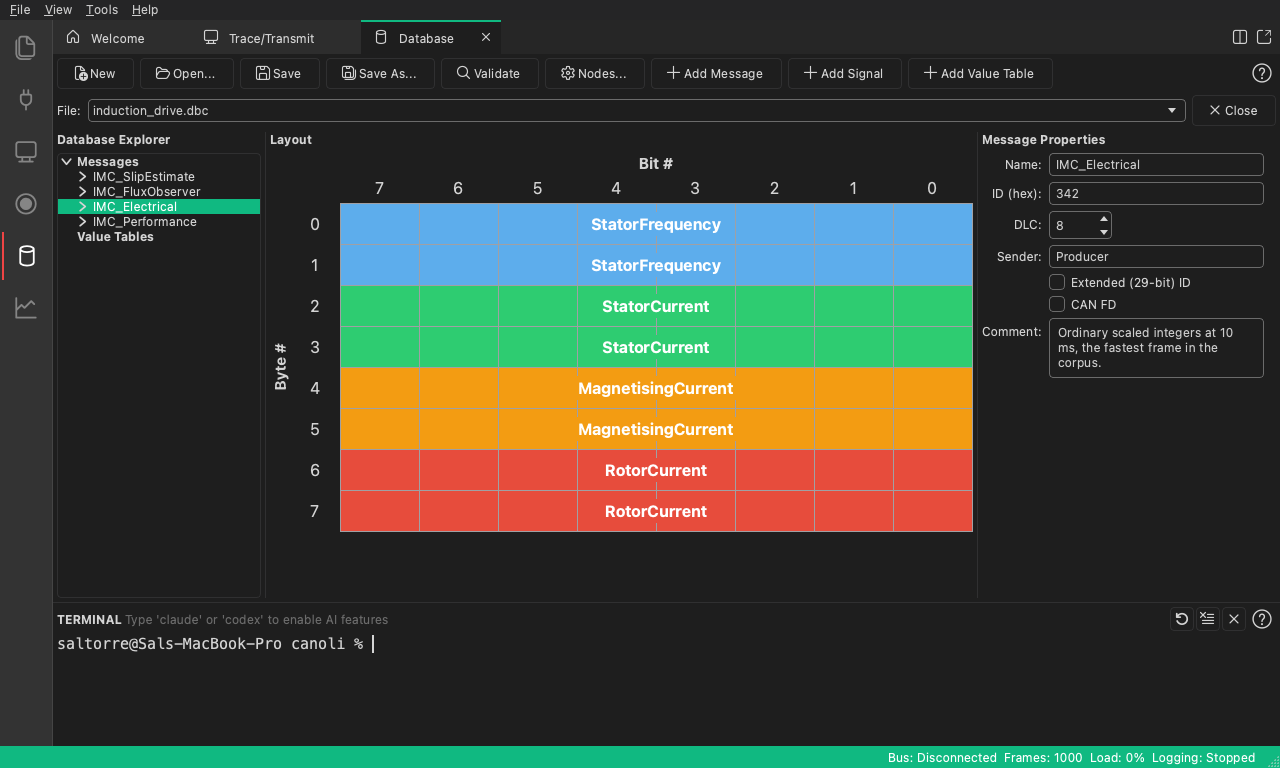
The Database toolbar provides:
- New — add an empty, untitled database.
- Open… — add a
.dbcor.symfile to the loaded set. - Save / Save As… — write the selected file back to a
.dbcfile. - Validate — check every loaded file for problems (you’ll see Database is valid. or a list of errors).
Several files at once
Open… adds a file to the loaded set instead of replacing it, so a vendor database and your own additions can decode the same bus together. The File: selector above the tree lists every loaded file: the selected one is what Save, Save As…, Nodes…, Add Message, and Add Enum operate on, and Close removes it from the set. The tree, the trace, charts, and the AI tools all see the union of every loaded file; when two files define the same message ID, the earlier-loaded file’s definition wins.
The Database Explorer tree
The left pane, Database Explorer, organizes the database into categories:
- Messages — each message, expandable to show its signals.
- Enums (called Value Tables for DBC files) — named value lookups that map raw numbers to text labels.
Selecting a message or signal shows its details in the Properties pane (bottom-right), and the Layout pane (top-right) draws the message’s bit grid so you can see exactly where each signal sits in the payload.
Editing messages
To add a message, click Add Message (or right-click in the tree and choose Add Message…). The editor fields are:
- Name: the message name (required).
- ID (hex): the arbitration ID, e.g.
100(required). - DLC: number of data bytes (up to 8, or up to 64 with CAN FD).
- Sender: the transmitting node.
- Extended (29-bit) ID and CAN FD checkboxes.
- Comment: free text.
Right-click a message for Duplicate Message and Delete Message.
Editing signals
With a message selected, click Add Signal (or right-click the message and choose Add Signal…). The signal editor covers:
- Name: the signal name (required).
- Start Bit: and Bit Length: the signal’s position and width.
- Byte Order: Little Endian (Intel) or Big Endian (Motorola).
- Value Type: Unsigned, Signed, or Float.
- Factor: and Offset: linear scaling
(
value = raw * factor + offset). - Minimum: / Maximum: the valid range.
- Unit: displayed next to the value.
- Enum: an optional value table for labeled values, with Edit Enum… for inline editing.
- Comment: free text.
A Multiplexing group lets you mark a signal as the MUX selector or as a Multiplexed signal with a Multiplex ID for buses that pack several layouts into one message ID.
Value tables (enums)
A value table maps raw numbers to human labels (for example, 0 = Off,
1 = On). Open the editor with Add Enum (the button reads Add Value Table
for DBC files), give it a Name, and add rows of Value and Description
using Add Row / Remove Row. Assign the table to a signal through the
signal’s Enum dropdown.
Nodes
Click Nodes… to open the node editor (titled Edit Nodes), where you Add…, Rename…, and Remove the ECUs on your bus. Nodes then appear in the Sender: dropdown when you edit a message.
Why it matters
The database powers everything downstream: decoded signals in the trace, charting, and the AI tools that read message and signal definitions. If you’re working with an undocumented bus, the AI Auto-Decode feature can propose candidate signals and even export a draft DBC for you to refine here.
Next: AI Features.