AI Features
CANoli’s AI features follow a bring-your-own-LLM model. CANoli does not embed a model or ask for an API key. Instead it exposes its capabilities as an MCP (Model Context Protocol) server, and you point an external AI agent — such as Claude Code or Codex — at it. The agent reads the real bus, the real logs, and CANoli’s own deterministic analysis, then helps you in plain English.
Why bring your own AI?
Most tools that add “AI” bundle a model and bill you for it every month, then mark up the API usage on top. CANoli takes the opposite approach, and you benefit:
- No second AI subscription. You almost certainly already pay for a capable coding agent — Claude Code, Codex, and the like. Use the plan you already have instead of renting a model from us a second time.
- No marked-up API costs. Tokens are billed by your agent under your own account at its normal rate. CANoli never sits in the middle adding a margin.
- Your choice of model. Pick the agent and model you trust, and switch freely as they improve. You’re never locked to whatever model we happened to ship.
- Your data, your account. Your prompts and bus data go to your agent under your account — not through CANoli’s servers.
CANoli’s job is the deterministic CAN analysis the model can’t do reliably on its own; your agent supplies the language and reasoning on top.
How it works
You ⇄ AI agent (Claude Code / Codex) ⇄ MCP ⇄ CANoli (live bus, logs, database)- The agent supplies the language model and the conversation.
- CANoli supplies the tools and the data. The heavy lifting (decoding, anomaly detection, statistics) is deterministic CANoli code; the model reasons over the facts it returns and provides the semantic naming and explanations.
Because the agent talks to the running app and reads the same files you do, its answers reflect your actual session — not a guess.
Connecting an agent
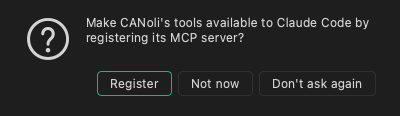
When CANoli detects a supported MCP client on your machine, it offers to wire it up for you (once per client). You’ll see a prompt titled Register CANoli with Claude Code? (or …with Codex?) asking whether to make CANoli’s tools available. Choose:
- Register — CANoli registers its MCP server with that client automatically.
- Not now — skip for this session.
- Don’t ask again — never prompt for that client.
Under the hood CANoli registers its MCP bridge so the agent can launch it on demand:
- Claude Code is registered with
claude mcp addat user scope. - Codex gets a
[mcp_servers.canoli]entry written into~/.codex/config.toml.
Once registered, start a conversation in your agent and ask it to use CANoli’s tools — no port or host configuration is needed.
Discovering CANoli’s capabilities
You don’t need to memorize the tool list below to use it — you can bring up CANoli’s capabilities from inside your agent, straight from the running server:
- In Claude Code, type
/mcp. It opens a menu of connected MCP servers; pickcanolito see every tool with its description. Think of it as CANoli’s help menu, listed by the agent itself. - Just ask, in plain language. If you don’t know where to start, ask your agent something like “what can the canoli MCP do?” and it will read the server’s tools and summarize them. This works in any MCP-capable agent, including Codex.
Because both paths read the live server, they always reflect the tools your installed version actually exposes.
Run your agent in the built-in terminal
You don’t need to leave CANoli to talk to your agent. CANoli has a full Terminal
panel built in — toggle it from View > Terminal (or press Ctrl+`). It runs
your normal shell with complete terminal emulation, so interactive agents like
Claude Code and Codex run right inside the app.
This pairs naturally with MCP registration: launch your agent in the built-in terminal, and because CANoli has already wired its tools into that agent, the conversation can reach your live bus, logs, and database immediately — analysis and the data it’s analyzing side by side in one window.
What you can ask the agent to do
The agent has access to the following CANoli tools over MCP.
Get help from the docs
The agent can read this user guide itself and walk you through a workflow. These two tools are license-free — they work even on an unlicensed install:
search_docs— search the guide for a topic and get back ranked pages with a snippet each, so the agent can find the right one before reading it.get_help— fetch a full guide page as Markdown by its topic id, so the agent can guide you through the steps it describes.
Ask something like “search the CANoli docs for how to replay a log” and the agent returns the actual guide content rather than guessing.
Inspect the session
get_adapter_status— is CANoli on the bus, and on what adapter?get_trace_data— recent frames from the live trace.get_project_info— the open project’s name and state.get_database_messages,get_message_info— the loaded database schema.load_database— open a DBC or SYM file from the project into the app, so the trace, chart and transmit panels decode against it.decode_frame— decode a frame against the database.list_log_files,read_log_file— browse and read logs (with optional time and ID filters and summary statistics).
Filter the trace view
set_trace_filter— narrow the live Trace window to the messages that matter, by CAN ID (include/exclude lists andlow-highranges) and an optional payload value/mask test, so a request like “show only the engine messages” takes effect in the trace.clear_trace_filter— remove the filter and show every message again.
Auto-decode unknown IDs
For a CAN ID with no database entry, the agent can reverse-engineer candidate signals from a log:
-
analyze_can_id— runs CANoli’s deterministic heuristics (bit-change analysis, signal-boundary grouping, endianness estimation, counter/checksum detection, confidence scoring) and returns candidate signals. The agent supplies meaningful names.Every payload byte is also tested against the payload checksums common on vehicle and industrial buses — XOR8, SUM8, a four-bit nibble sum, and an XOR mixed with the arbitration ID. Where one of them reproduces a byte, the report names the algorithm and the share of sampled frames that agreed, so a checksum field arrives as a measured fact rather than a guess from how the byte behaves. Some algorithms hold at more than one byte position — an XOR checksum makes the whole payload XOR to zero, so every byte satisfies it. Those matches are marked ambiguous: the algorithm is proven, the field it occupies is not.
Every bit is also scored for information content, not just movement. A bit that flipped once in a long capture and one that alternates every frame both toggle, so a transition count cannot separate them; the reported entropy can. A field that never happens to exercise one of its middle bits is rejoined into a single candidate rather than reported as fragments, provided the unexercised bits sit inside a payload byte — a gap reaching a byte boundary is left alone, since that is where two separate fields most plausibly meet.
Each candidate also says whether its width was measured or is a floor. A field is built from the bits seen to change, so one whose high bits held still for the whole capture is reported narrower than it really is — an engine speed that never left idle looks like a 7-bit field when it is 16. The report gives the static bits sitting above the field and the constant they carry, along with the widths that would fit: a high byte parked at
0x7Dbeside a busy low byte is the top of a value near 32000, not a separate constant. A signal exported under this caveat carries it into the DBC comment, because a truncated width decodes correctly only while the value stays inside the range the capture happened to cover.The same call returns the context that would otherwise take several more: how regularly the ID transmits (cycle time, jitter, and whether it is periodic at all or fired by an event), what each payload byte appears to do rolled up to one entry per byte, and which other IDs in the capture resemble it. Cycle time is the strongest single clue to what an unknown message carries — a 10 ms broadcast is a control or sensor value, a 1 s one is status — and an unknown message is rarely alone, so the IDs sharing its width, cycle, and static-byte layout are usually its siblings from the same ECU. Each resemblance is reported with the reason it matched rather than a bare score.
-
fit_signal_scaling— recovers what a field’s raw counts are worth. Auto-decode finds where a signal sits in the payload but not what it measures, so a draft DBC decodes bare numbers. Give it a reference series you already trust — GPS speed from a phone log, engine speed from a scan tool, torque from a bench run — as a two-columntimestamp,valueCSV in seconds, recorded over the same period as the capture, and it fits each candidate against it and reports the factor and offset.Saturated “measurement unavailable” codes are excluded before fitting, since a run of them drags the line badly, and a factor landing near a round number is snapped to it: real scaling factors are values like 0.1 and 0.25, and a fit of 0.09997 is 0.1 plus noise. Each result carries a verdict. A confirmed fit is written into the candidate and survives into the exported DBC; an unconfirmed one is reported but not adopted, and the signal stays at raw counts rather than being given a scaling the capture never established.
-
export_decoded_dbc— writes the chosen candidates to a draft DBC file you can refine in the Database panel. Pass a list of IDs to write them all into one file; exporting again into the same file keeps the messages already there and replaces any re-exported ID, so a database can be built up one ID at a time. Follow it withload_databaseto open that file in the app and watch the same trace decode with names.
Reverse-engineer a signal (the wiggle test)
To find which message carries an unknown physical signal, capture the bus at rest, then again while you perform one action, and diff the two — the bits that were steady in the baseline but changed during the action are the reacting signal:
analyze_capture_diff— diff a baseline log against a during-stimulus log and report the arbitration IDs that appeared under the stimulus and the bits that toggled. Feed a reacting ID intoanalyze_can_idto name the signal.
On a live bus you can capture the two windows directly instead of recording logs:
start_capture/stop_capture— record named capture windows in memory (for examplebaseline, thenstimuluswhile you press the accelerator).start_capturetakes an optionalduration_s, so both windows can be asked for at the same length instead of timing two stop calls.list_capture_windows— the recorded windows and their sizes.diff_capture_windows— diff two recorded windows, the same result asanalyze_capture_diffwithout writing any files.
To run the whole loop as a guided workflow, use the discover_signals prompt:
tell it what the device is (for example “electric golf cart”) and it walks you
through predicting the expected signals, capturing baseline versus stimulus one
action at a time, diffing to find the reacting signal, and confirming each named
signal into a draft DBC.
Scan a CANopen bus
On a CANopen network the agent can actively probe for devices (requires a live connection):
scan_sdo— send an SDO read request to each node id in a range and report which nodes answered on their SDO response COB-ID (Device Type,0x1000, by default), aborts included — an abort still proves a node is present. Use it to enumerate the SDO servers on an unknown bus.scan_nodes— discover the active node ids on the bus, each tagged with the services that revealed it (heartbeat, emergency, TPDOs, SDO responses). It pokes silent nodes with an SDO read by default; setprobeto false for a passive, listen-only scan on a bus that must not be disturbed.
Detect anomalies
CANoli’s detectors watch for five kinds of misbehavior: unexpected message timing, missing periodic messages, out-of-range signal values, gradual signal drift, and a node that keeps transmitting after it has stopped updating what it sends. That last one is the failure a healthy-looking trace hides: when an ECU’s application task hangs while its transmit timer keeps running, the frames arrive exactly on cycle with every value still in range. CANoli reports it when a payload goes byte-identical, or a rolling counter stops advancing, for several seconds beyond anything that message has done before — so a configuration frame that never changes, or a parked vehicle whose signals are static throughout, stays quiet.
They run in two places.
Automatically, on the live bus. While you’re connected, CANoli continuously runs these detectors over a rolling window of recent traffic and flags any reacting CAN ID right in the Trace window — a marker appears in front of the message name in real time, showing the worst severity seen for that ID. This needs no agent and no prompt; it happens while you monitor. With a database loaded, the out-of-range and drift checks decode against your signal definitions; the timing checks work with or without one.
On demand, over a log, through your agent. The agent can scan a recorded log with the same detectors and reason over the results:
-
detect_anomalies— return the full anomaly list. Optionally learn a baseline from a reference log and override thresholds.Capture length changes what drift means. The drift check fits a trend across the whole capture, so a window shorter than a signal’s own period reports an ordinary slow waveform — a temperature that swings over a minute, a charge/discharge curve — as rising or falling. A drift finding is only meaningful when the log spans several periods of that signal; on a short capture the timing, missing-message and out-of-range findings are the ones that stand on their own.
-
summarize_anomalies— counts by severity, type, and CAN ID for quick triage. -
explain_anomaly— full detail on one anomaly plus the traffic around it: what else moved in the moments before it, and which signals track the anomalous one. With a database loaded this is an explanation rather than a restatement.
Ask why something happened
Every detector above looks at one signal at a time, which answers what happened. These two look across signals, which is what it takes to start answering why:
what_changed_before— given a timestamp, rank every decoded signal by how far it moved in the window just before it, as a fraction of the range that signal covers across the whole capture. Signals in unrelated units therefore rank against each other, and each entry carries its before and after values, both timestamps, and the CAN ID it came from. Signals that never move, that the window does not reach, or that held one value throughout are left out rather than listed at zero.correlate_signals— given a signal, rank the others that track it, with the lead or lag at which they do. Signals arriving on different messages at different rates are resampled onto a shared time base first (sample-and-hold, the value a receiving node actually has in hand), so a 250 ms status frame and a 1 s heartbeat can be compared at all. A positiveleads_target_by_msmeans that signal moved first.
These are measurements, not verdicts. Correlation is not causation, and a lead is not a mechanism: two signals can move together because one drives the other, because something else drives both, or by coincidence over a short window. Every result carries the evidence behind it — correlation at the fitted lead, correlation with no shift at all, how many aligned points were compared, how many updates the signal really contributed, and the time resolution of the comparison — along with a caveat saying as much. CANoli reports the figures; your agent and your knowledge of the system do the reasoning.
Query logs in natural language
Ask questions about a capture and let the agent translate them into precise queries:
aggregate_signal— min/max/avg/stddev of a decoded signal over a time window.compare_logs— the same signal’s statistics across two logs (for example, a baseline capture vs. a fault capture), with per-stat deltas.
Angles are not averaged as though they were distances. A signal the database
declares in degrees or radians over a full turn — [0|360], [-180|180],
[0|2π] — is summarised with circular statistics, so a compass held due north
while jittering across the 0/360 seam reports north rather than south-east. The
result says angular: true and names the convention it used. Anomaly detection
follows the same rule: a shaft turning through the seam is doing its job, not
drifting, and a heading past 360° is a direction rather than an out-of-range
value.
Drive the chart
-
setup_chart— plot a set of signals. -
get_chart_state— what’s currently plotted and how much data exists. -
export_chart— export the chart to CSV or an image. -
clear_chart— clear the plot. -
set_chart_window— zoom the chart to a fixed time window, for example the moment a fault occurred, so the answer is a focused view rather than the whole timeline. -
annotate_chart— drop a labeled marker line at an event time to call it out on the plot.Both take chart seconds. An event time found by
detect_anomaliesis log-relative instead; for a log recorded this session the anomaly already carries a convertedchart_time, and either tool also accepts the raw timestamp together with alog_filepathand converts it itself — so the marker lands where the live chart actually drew the event. -
clear_chart_annotations— remove the markers, keeping the curves.
Control logging and replay
-
start_logging/stop_logging— record to ASC, BLF, or CSV.Ask for a length rather than timing the stop.
start_loggingtakes an optionalduration_s(up to 120 s) and the recording closes itself when the time is up. An agent cannot sleep, so without it “record twenty seconds” becomes a guess — and a log far shorter than intended makes ordinary slow waveforms look like the drift described under Detect anomalies above. The call returns straight away;logging_statusreports whether the recording is still running, how many frames it holds and how long is left, so waiting for it costs one cheap call per check. -
load_replay,play_replay,pause_replay,stop_replay— drive replay.
Transmit on the bus
Everything above reads. Transmitting is the one thing the agent does that reaches outside CANoli — a frame goes to real hardware, and whatever is listening may act on it. So it is switched off until you say otherwise.
Tick “Allow agent transmit” in the Connection panel. It is unchecked at every launch and is not saved with a profile or a project: you grant it for the session in front of you, never in advance. Until you do, the transmit tools refuse and tell the agent to ask you.
list_transmit_entries— what the Transmitter holds, and whether the agent is currently allowed to send. Never gated, so the agent can see that it may not transmit rather than discovering it by failing.transmit_frame— send one frame now. Either raw (arbitration_idanddata) or by database message (messageandsignal_values, encoded through the loaded DBC).set_transmit_entry— create or update a named row in the Transmitter, with an optionalcycle_msfor periodic sending. An entry of the same name is replaced, not duplicated.enable_transmit— start or stop an entry’s periodic sending.
Agent-composed frames are ordinary transmit entries: they appear in the Transmitter list, carry the same Enabled box, show in the trace as Tx, and you can edit or untick any of them by hand. Nothing the agent sends is hidden from the list you are already watching.
Ask for a shape rather than a value and the waveform generator does the work: “sweep ThrottlePosition from 0 to 100 % over ten seconds and chart what the motor does” is one
set_transmit_entryand onesetup_chart.
Guided workflows
Beyond the individual tools, CANoli ships a handful of prompts — pre-written,
step-by-step workflows that chain several tools together so you don’t have to spell
out each step. In Claude Code they appear as slash commands (type / and look
for the canoli entries); other agents surface them in their prompt or command menu.
Pick one, fill in the blank it asks for, and the agent runs the whole flow:
discover_signals— reverse-engineer unknown signals with the wiggle test described under Reverse-engineer a signal above. Tell it what the device is and it guides the capture → diff → name → draft-DBC loop.triage_anomalies— scan a log, rank its anomalies worst-first, drill into the critical ones, and recommend next steps (uses a baseline log if you point it at one).explain_fault— explain what led up to an event at a given time in a log: rank what moved just before it, correlate the signal that failed against the rest of the bus, and report which explanation the data supports, what else would produce the same pattern, and what capture would tell them apart.auto_decode_id— auto-decode a single unknown CAN ID from a log, propose readable names and units for the high-confidence candidates, and confirm them into a draft DBC.query_log— answer a plain-language question about a log by narrowing the window, mapping it to a signal, and returning the figures (and a chart if useful).how_do_i— answer a “how do I…” question straight from this user guide, then walk you through the steps.
The agent can also read your session as resources (canoli://adapter,
canoli://database, canoli://project, canoli://trace) when it needs the current
adapter status, database schema, project, or recent trace as context.
Example prompts
Once an agent is connected, you might ask:
- “Search the CANoli docs for how to replay a log.”
- “What CAN IDs are on the bus right now, and which ones aren’t in the database?”
- “Analyze ID 0x2AD from logs/canoli_20260617_143022.asc and propose signals.”
- “Summarize the anomalies in this log compared to the baseline capture.”
- “What was the max value of EngineSpeed.RPM in the last log?”
- “Plot VehicleSpeed and BrakePressure, then export the chart as a PNG.”
The agent calls the right tools, and CANoli does the rest.
That completes the core workflow. Head back to the User Guide index for the full topic list.